.png?width=200&height=31&name=Backbone-bluepillshape%20(2).png)
Link
linking your Backbone account with you Co-Pilot account
- Open a Chat in the Custom Agent select Link command or type in Link your Backbone account
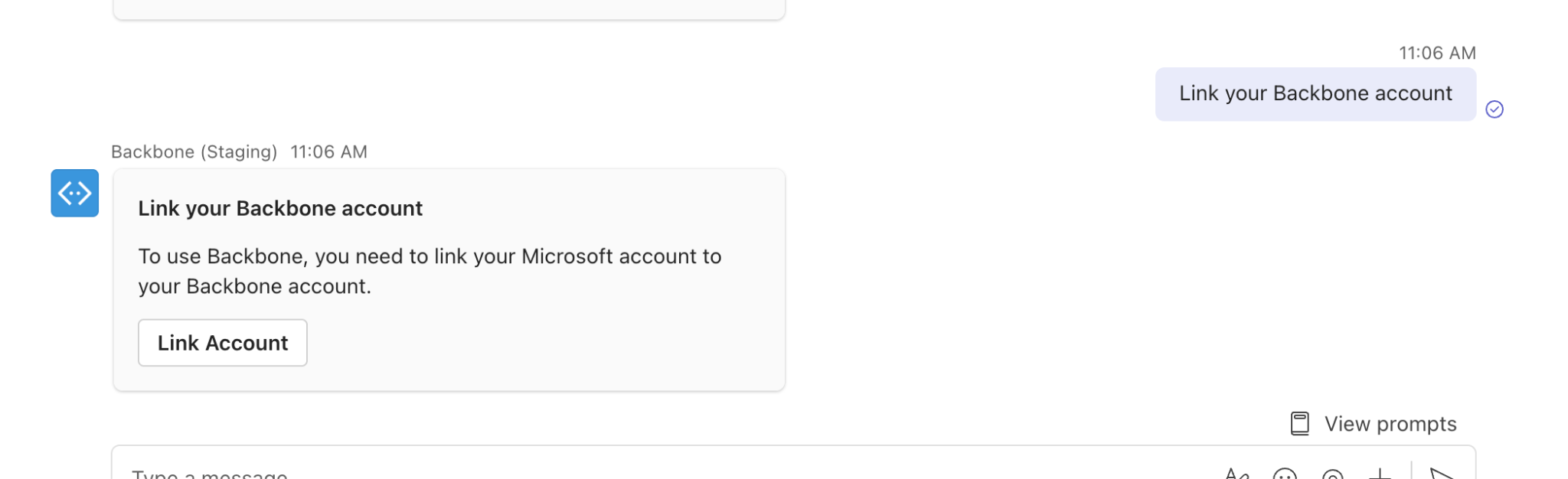
- Click on Link Account or Navigate to https://app.usebackbone.ai/settings/copilot
- Log in to your Backbone account
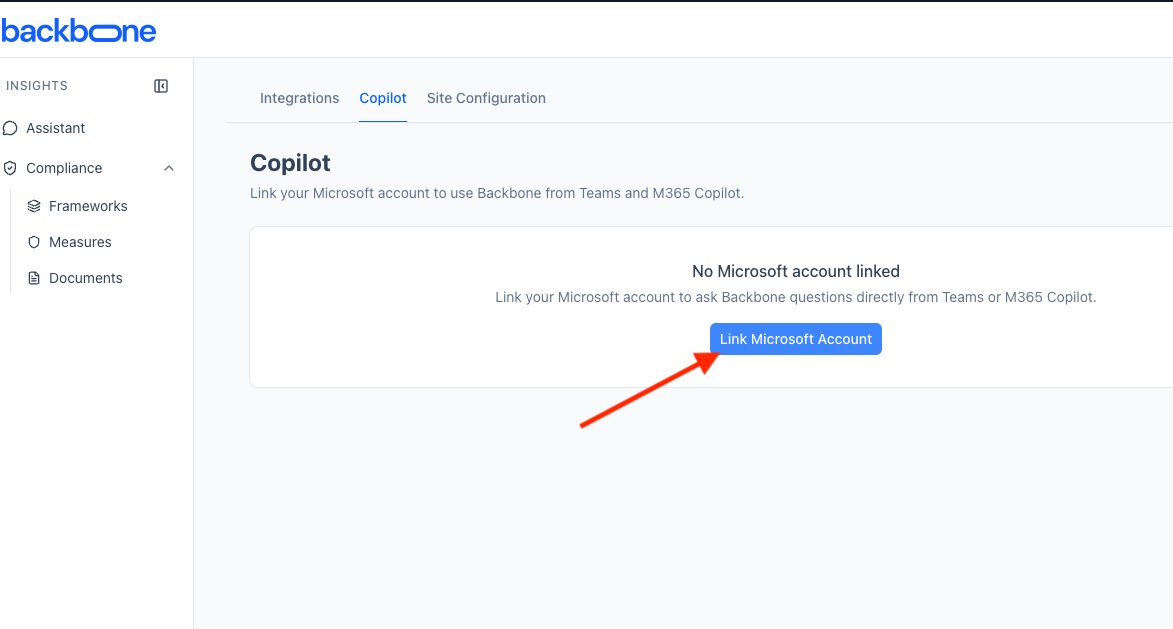
- Click on Link Microsoft Account
- Log into your Microsoft Account
- [Automatic redirect to Backbone]
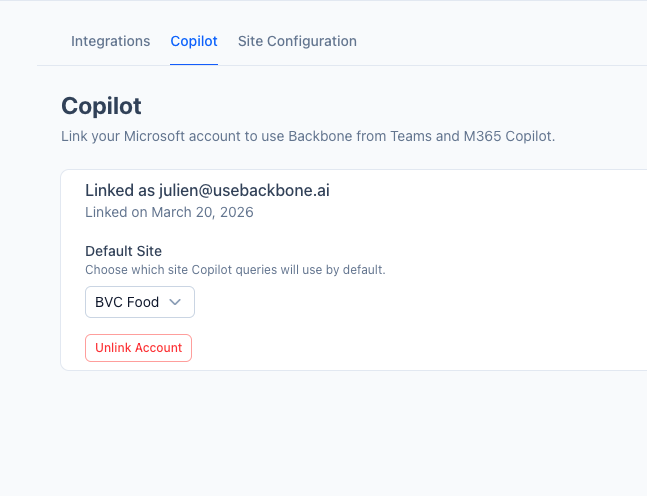
- Select your company as default Site
Ask
ask a compliance question
Once the connection is made you can ask questions to our AI Assistant. We have prepared a demo environment with demo data.
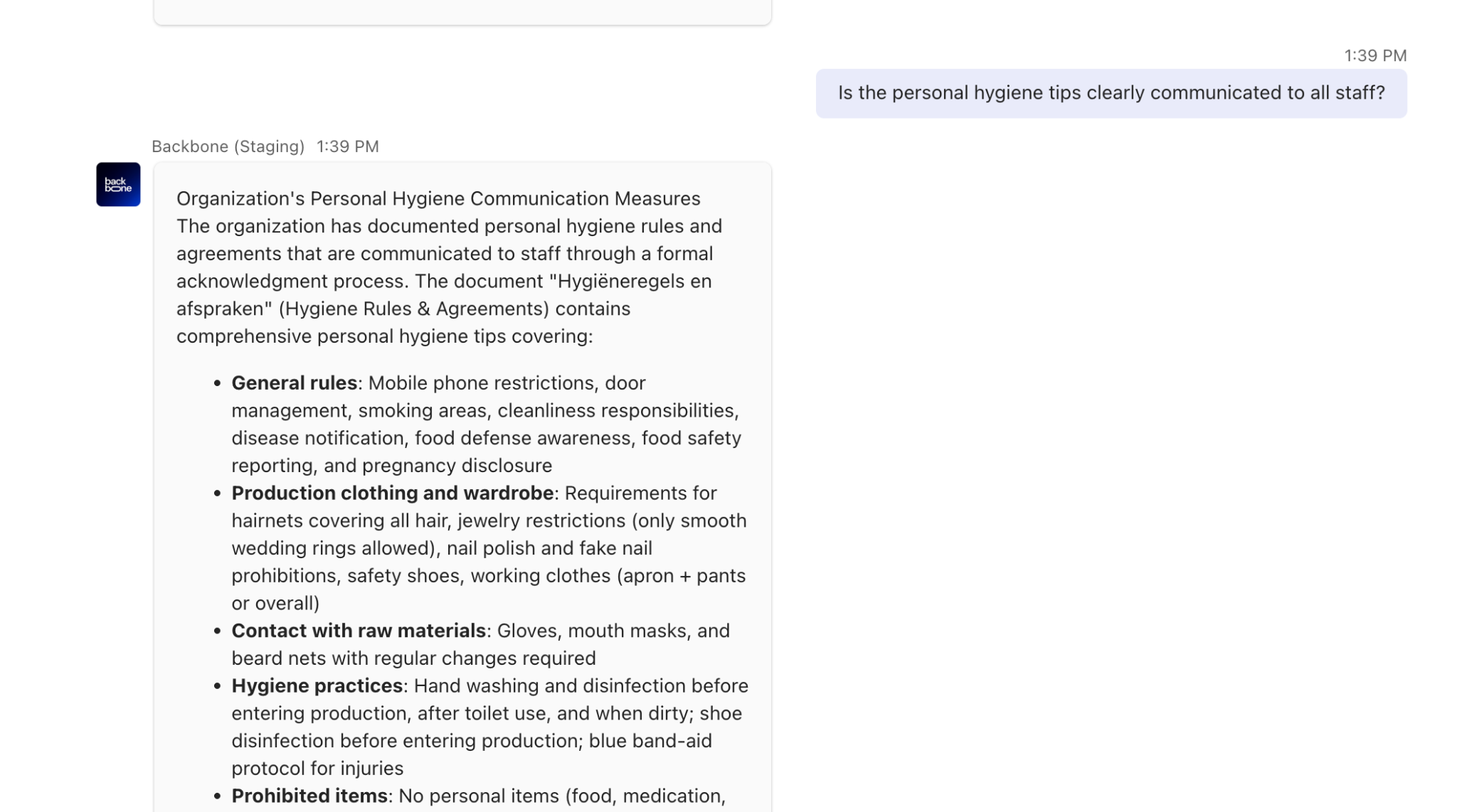
Example questions you can ask
|
What is our pest control procedure? |
|
Which food safety projects were implemented? |
|
Is the personal hygiene tips clearly communicated to all staff? |
|
When was the last food fraud assessment? |
|
Which company do we work with for pest monitoring |
Clear
refresh the conversation history
Once this is done you will refresh the conversation and no more history will be used in further conversations.

Site
change the assigned site for the user
There are 2 options to change the default site for your Co-Pilot user
- In the Backbone platform and on the https://app.usebackbone.ai/settings/copilot page you can change the default site that is applicable for the Co-Pilot integration
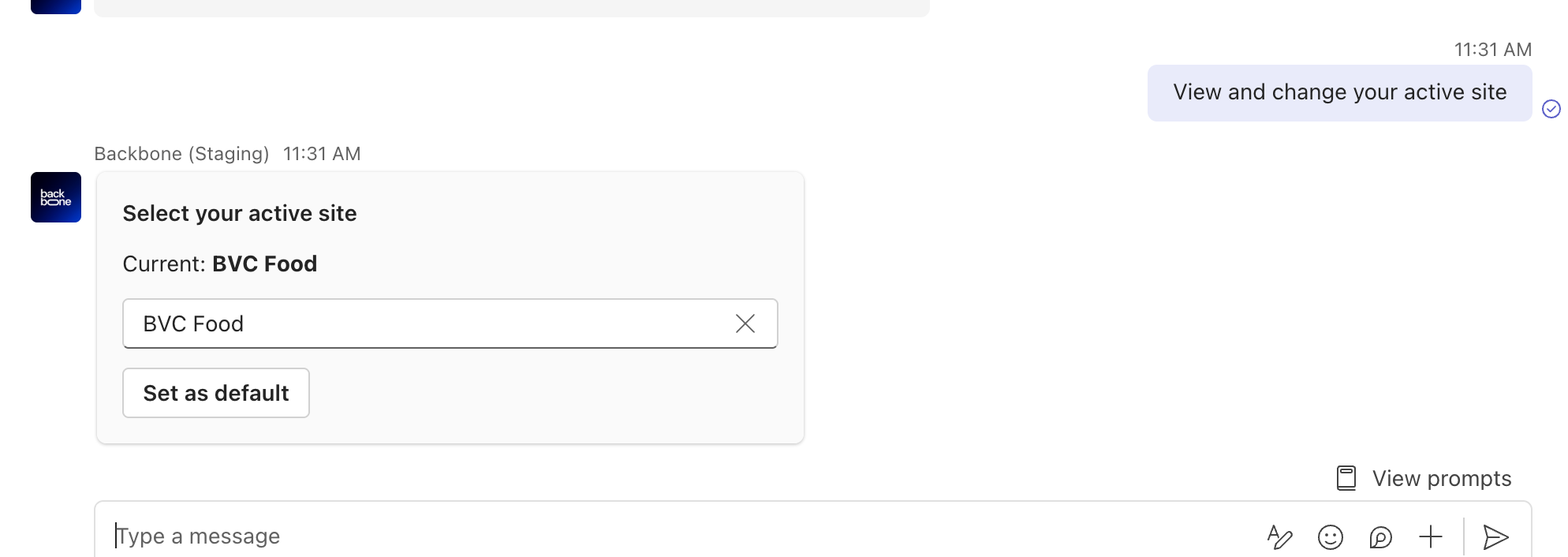
- Select site or type View and change your active site in Co-Pilot to change the default site assigned to the user. You can switch the site in the drop down menu
/unlink
remove the link in between your Backbone account and Co-Pilot account
- Open a Chat in the Custom Agent select the Unlink option or type Unlink your Backbone account
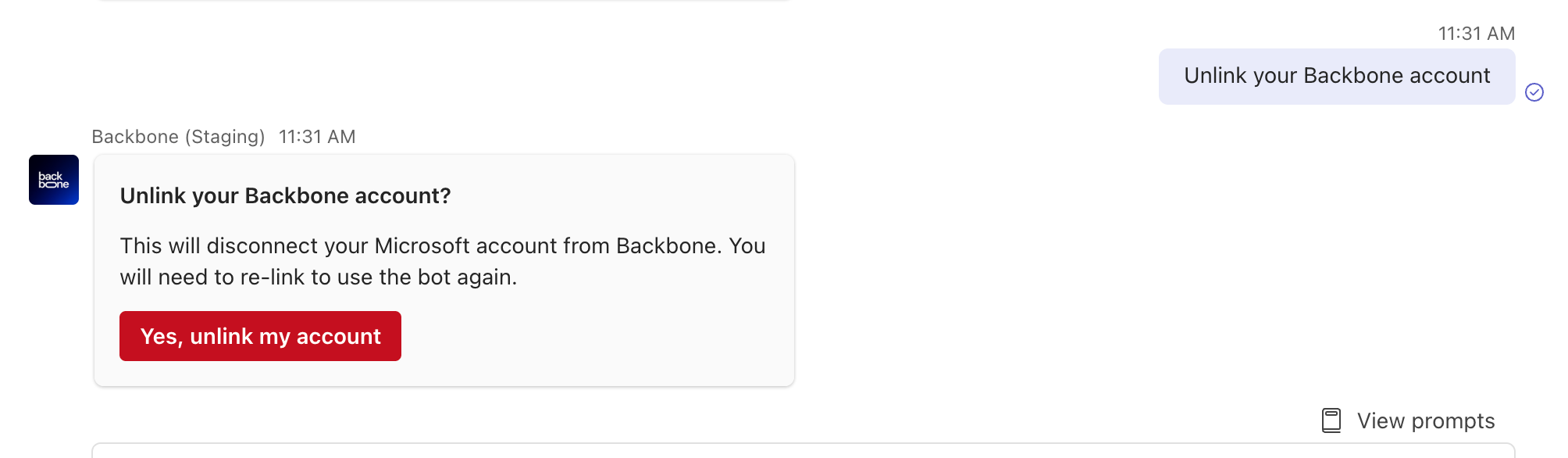
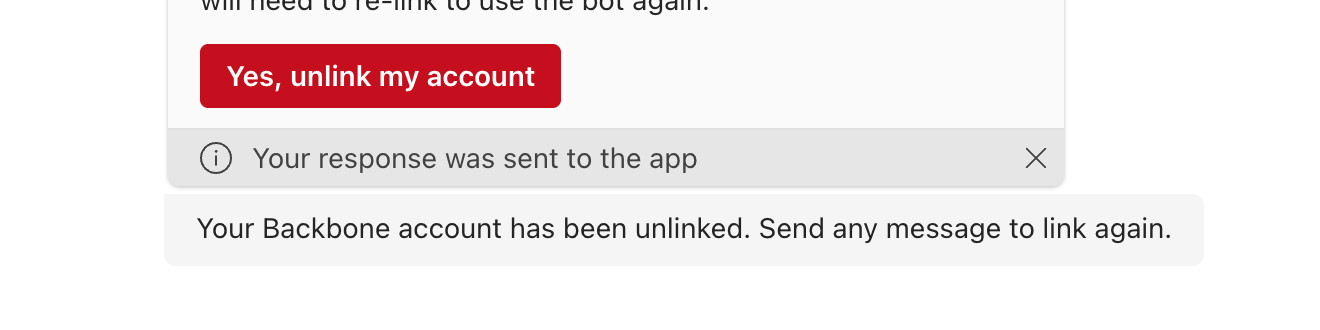
- If you click on the Yes, unlink my account button the connection between your Backbone account and Co-Pilot is removed